





Explore Plans

Google Drive to Honeywell evohome integrations

When you upload a file to a specific Google Drive folder, IFTTT can trigger your Honeywell evohome system to adjust your heating or hot water. Store your home automation commands as files, and watch your heating respond.
Get started todayGet started today

Automate Google Drive and Honeywell evohome from your AI assistant

Ask OpenClaw to create Google Drive applets that automatically save important files and photos, right from your AI assistant, with IFTTT MCP.

Set up IFTTT MCP

Create your own Google Drive and Honeywell evohome workflow

Create custom workflows effortlessly by selecting triggers, queries, and actions. With IFTTT, it's simple: “If this” trigger happens, “then that” action follows. Streamline tasks and save time with automated workflows that work for you.

27 triggers, queries, and actions

File updated in folder

Polling trigger
Polling Applets run after IFTTT reaches out to the trigger service and finds a new trigger event. These trigger checks occur every hour on Free, every 15 minutes on Starter, and every 5 minutes on Pro and Pro+.
This trigger fires when a file in the Google Drive folder you specify changes, including Docs, Sheets and Slides, once edits stop for 10 minutes. A moved-in file may fire once, and a file this Applet writes there re-fires it. Nothing is made public.

New file from search in your folder

Polling trigger
Polling Applets run after IFTTT reaches out to the trigger service and finds a new trigger event. These trigger checks occur every hour on Free, every 15 minutes on Starter, and every 5 minutes on Pro and Pro+.
This trigger fires every time a new non-Google Workspace file matching your search query is uploaded in a Google Drive folder. When enabled, all non-Google Workspace files in the folder will be set to viewable by anyone with the link.

New file in your folder

Polling trigger
Polling Applets run after IFTTT reaches out to the trigger service and finds a new trigger event. These trigger checks occur every hour on Free, every 15 minutes on Starter, and every 5 minutes on Pro and Pro+.
This trigger fires when a new non-Google Workspace file is added to the specified Google Drive folder. When enabled, all non-Google Workspace files in the folder are set to viewable by anyone with the link.

New folder in folder

Polling trigger
Polling Applets run after IFTTT reaches out to the trigger service and finds a new trigger event. These trigger checks occur every hour on Free, every 15 minutes on Starter, and every 5 minutes on Pro and Pro+.
This trigger fires when a new folder is created inside the Google Drive folder you specify. Folders are not shared or made public.

New photo in your folder

Polling trigger
Polling Applets run after IFTTT reaches out to the trigger service and finds a new trigger event. These trigger checks occur every hour on Free, every 15 minutes on Starter, and every 5 minutes on Pro and Pro+.
This trigger fires every time a new photo is saved in the Google Drive folder you specify. When enabled, both existing and new non-Google Workspace files in the folder will be set to viewable by anyone with the link.

New starred file in folder

Polling trigger
Polling Applets run after IFTTT reaches out to the trigger service and finds a new trigger event. These trigger checks occur every hour on Free, every 15 minutes on Starter, and every 5 minutes on Pro and Pro+.
This trigger fires every time a new non-Google Workspace file is starred in a specified Google Drive folder. When enabled, both existing and new non-Google Workspace files in the folder will be set to viewable by anyone with the link.

New video in your folder

Polling trigger
Polling Applets run after IFTTT reaches out to the trigger service and finds a new trigger event. These trigger checks occur every hour on Free, every 15 minutes on Starter, and every 5 minutes on Pro and Pro+.
This trigger fires every time a new video is saved in the Google Drive folder you specify. When enabled, both existing and new non-Google Workspace files in the folder will be set to viewable by anyone with the link.

Find files in folder

Query
A query lets your Applet retrieve extra data that isn't included in the trigger, so that your automation can include more complete or useful information.
This query returns up to 50 files in the Google Drive folder you specify with a word in the name that starts with the text you give, ignoring case, newest first, so a later step can move, copy or rename them.

History of files from search uploaded in your folder

Query
A query lets your Applet retrieve extra data that isn't included in the trigger, so that your automation can include more complete or useful information.
This query returns a list of recent files that matches your search query in a Google Drive folder.

History of files starred in folder

Query
A query lets your Applet retrieve extra data that isn't included in the trigger, so that your automation can include more complete or useful information.
This query returns a list of recent files starred in a specified Google Drive folder.

History of files uploaded in your folder

Query
A query lets your Applet retrieve extra data that isn't included in the trigger, so that your automation can include more complete or useful information.
This query returns a list of recent files added to the Google Drive folder you specify.

History of photos uploaded in your folder

Query
A query lets your Applet retrieve extra data that isn't included in the trigger, so that your automation can include more complete or useful information.
This query returns a list of recent photos saved in the Google Drive folder you specify.

History of videos uploaded in your folder

Query
A query lets your Applet retrieve extra data that isn't included in the trigger, so that your automation can include more complete or useful information.
This query returns a list of recent videos saved in the Google Drive folder you specify.

Append to a text file

Action
An action is the task your Applet carries out after the trigger occurs. It defines what happens as the result of your automation and completes the workflow.
This action will add the text you give as a new line at the end of a plain text file in the Google Drive folder you specify, creating the file if it does not exist. To add to a Google Doc, use Google Docs' Append to a document.

Copy a file

Action
An action is the task your Applet carries out after the trigger occurs. It defines what happens as the result of your automation and completes the workflow.
This action will make a copy of a file you specify by its Drive link, with the name you choose, in the Google Drive folder you specify. Folders cannot be copied.

Create a file from text

Action
An action is the task your Applet carries out after the trigger occurs. It defines what happens as the result of your automation and completes the workflow.
This action will create a new file in the Google Drive folder you specify, with the name and text you give it, as a Google Doc or a plain text file. If a file with that name exists, a numbered copy is created.

Create folder

Action
An action is the task your Applet carries out after the trigger occurs. It defines what happens as the result of your automation and completes the workflow.
This action will create a folder with the name you give inside the Google Drive folder you specify. If a folder with that name is already there, nothing new is created.

Disable a quick action

Action
An action is the task your Applet carries out after the trigger occurs. It defines what happens as the result of your automation and completes the workflow.
This Action will remove any existing quick action at your location and set your heating system to follow the schedule.

Enable a quick action

Action
An action is the task your Applet carries out after the trigger occurs. It defines what happens as the result of your automation and completes the workflow.
This Action will enable a quick action at one of your locations. This can either be permanent or for a number of days/hours.

Move a file

Action
An action is the task your Applet carries out after the trigger occurs. It defines what happens as the result of your automation and completes the workflow.
This action will move a file or folder you specify by its Drive link into the Google Drive folder you specify.

Move a file to trash

Action
An action is the task your Applet carries out after the trigger occurs. It defines what happens as the result of your automation and completes the workflow.
This action will move a file you specify by its Drive link to the Google Drive trash, where it can be restored for 30 days. It never deletes permanently and does not trash folders.

Rename a file

Action
An action is the task your Applet carries out after the trigger occurs. It defines what happens as the result of your automation and completes the workflow.
This action will change the name of a file you specify by its Drive link.

Save a document as PDF

Action
An action is the task your Applet carries out after the trigger occurs. It defines what happens as the result of your automation and completes the workflow.
This action will save a PDF copy of a Google Doc, Sheet or Slides file you specify by its Drive link into the Google Drive folder you specify. If a file with that name exists, a numbered copy is created.

Set a zone temperature

Action
An action is the task your Applet carries out after the trigger occurs. It defines what happens as the result of your automation and completes the workflow.
This Action sets an override on target temperature of one of your zones. This can either be permanently set or just for a number of hours.

Turn hot water off

Action
An action is the task your Applet carries out after the trigger occurs. It defines what happens as the result of your automation and completes the workflow.
This Action will turn the hot water at one of your locations off. This can either be permanent or for a number of hours.

Append to a text file

Action
An action is the task your Applet carries out after the trigger occurs. It defines what happens as the result of your automation and completes the workflow.
This action will add the text you give as a new line at the end of a plain text file in the Google Drive folder you specify, creating the file if it does not exist. To add to a Google Doc, use Google Docs' Append to a document.

Copy a file

Action
An action is the task your Applet carries out after the trigger occurs. It defines what happens as the result of your automation and completes the workflow.
This action will make a copy of a file you specify by its Drive link, with the name you choose, in the Google Drive folder you specify. Folders cannot be copied.

Create a file from text

Action
An action is the task your Applet carries out after the trigger occurs. It defines what happens as the result of your automation and completes the workflow.
This action will create a new file in the Google Drive folder you specify, with the name and text you give it, as a Google Doc or a plain text file. If a file with that name exists, a numbered copy is created.

Create folder

Action
An action is the task your Applet carries out after the trigger occurs. It defines what happens as the result of your automation and completes the workflow.
This action will create a folder with the name you give inside the Google Drive folder you specify. If a folder with that name is already there, nothing new is created.

Disable a quick action

Action
An action is the task your Applet carries out after the trigger occurs. It defines what happens as the result of your automation and completes the workflow.
This Action will remove any existing quick action at your location and set your heating system to follow the schedule.

Enable a quick action

Action
An action is the task your Applet carries out after the trigger occurs. It defines what happens as the result of your automation and completes the workflow.
This Action will enable a quick action at one of your locations. This can either be permanent or for a number of days/hours.

File updated in folder

Polling trigger
Polling Applets run after IFTTT reaches out to the trigger service and finds a new trigger event. These trigger checks occur every hour on Free, every 15 minutes on Starter, and every 5 minutes on Pro and Pro+.
This trigger fires when a file in the Google Drive folder you specify changes, including Docs, Sheets and Slides, once edits stop for 10 minutes. A moved-in file may fire once, and a file this Applet writes there re-fires it. Nothing is made public.

Find files in folder

Query
A query lets your Applet retrieve extra data that isn't included in the trigger, so that your automation can include more complete or useful information.
This query returns up to 50 files in the Google Drive folder you specify with a word in the name that starts with the text you give, ignoring case, newest first, so a later step can move, copy or rename them.

History of files from search uploaded in your folder

Query
A query lets your Applet retrieve extra data that isn't included in the trigger, so that your automation can include more complete or useful information.
This query returns a list of recent files that matches your search query in a Google Drive folder.

History of files starred in folder

Query
A query lets your Applet retrieve extra data that isn't included in the trigger, so that your automation can include more complete or useful information.
This query returns a list of recent files starred in a specified Google Drive folder.

History of files uploaded in your folder

Query
A query lets your Applet retrieve extra data that isn't included in the trigger, so that your automation can include more complete or useful information.
This query returns a list of recent files added to the Google Drive folder you specify.

History of photos uploaded in your folder

Query
A query lets your Applet retrieve extra data that isn't included in the trigger, so that your automation can include more complete or useful information.
This query returns a list of recent photos saved in the Google Drive folder you specify.

Build an automation in seconds!

You can add delays, queries, and more actions in the chat.

GET STARTED

How to connect to a Google Drive automation

Find an Applet using Google Drive and Honeywell evohome

Find an automation to connect to, or create your own!

Connect IFTTT to your accounts

Securely connect the Applet services to your respective accounts.

Finalize and customize your Applet

Review trigger and action settings, and click connect. Simple as that!
Get started

Make more happen with your credits

  • Connect to more Applets

    More credits, more possibilities

    Get more credits per month to power more automation activity.
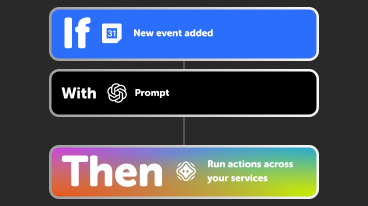
  • If a new calendar event is added, with an AI prompt, then an AI agent runs actions across your services

    Power more advanced automations

    Use credits to power your automations, including actions that require more processing.
  • Get access to faster speeds

    Access faster speeds and higher rate limits

    Get faster updates and more actions with increased rate limits and more frequent checks.

More on Google Drive and Honeywell evohome

About Google Drive

Google Drive and IFTTT let you automatically save files, photos, and videos to your Drive from other apps and services.
Explore Google Drive

More integrations with Google Drive

About Honeywell evohome

Honeywell evohome and IFTTT let you automate your home heating, adjusting zone temperatures and hot water from anywhere.
Explore Honeywell evohome

More integrations with Honeywell evohome

IFTTT helps all your apps and devices work better together

Get started for free