





Explore Plans

Dropbox to Powahome integrations

Build your own Dropbox and Powahome automation on IFTTT. Dropbox can start an automation with "Any new shared file link", and IFTTT can then run "Invert all the lights" on Powahome.
Get started todayGet started today

Automate Dropbox and Powahome from your AI assistant

Ask OpenClaw to create Dropbox applets for you, right from your AI assistant, with IFTTT MCP.

Set up IFTTT MCP

Create your own Dropbox and Powahome workflow

Create custom workflows effortlessly by selecting triggers, queries, and actions. With IFTTT, it's simple: “If this” trigger happens, “then that” action follows. Streamline tasks and save time with automated workflows that work for you.

49 triggers, queries, and actions

Any light is switched off in a room

Polling trigger
Polling Applets run after IFTTT reaches out to the trigger service and finds a new trigger event. These trigger checks occur every hour on Free, every 15 minutes on Starter, and every 5 minutes on Pro and Pro+.
This trigger fires when a light is switched off in the room you select.

Any light is switched on in a room

Polling trigger
Polling Applets run after IFTTT reaches out to the trigger service and finds a new trigger event. These trigger checks occur every hour on Free, every 15 minutes on Starter, and every 5 minutes on Pro and Pro+.
This trigger fires when a light is switched on in the room you select.

Any new shared file link

Polling trigger
Polling Applets run after IFTTT reaches out to the trigger service and finds a new trigger event. These trigger checks occur every hour on Free, every 15 minutes on Starter, and every 5 minutes on Pro and Pro+.
This trigger fires every time a shared link for a file is created. Note: doesn't include folders.

Any roller is moved in a room

Polling trigger
Polling Applets run after IFTTT reaches out to the trigger service and finds a new trigger event. These trigger checks occur every hour on Free, every 15 minutes on Starter, and every 5 minutes on Pro and Pro+.
This trigger fires every time a roller is crossing the selected percentage in the room you select.

Any socket is switched off in a room

Polling trigger
Polling Applets run after IFTTT reaches out to the trigger service and finds a new trigger event. These trigger checks occur every hour on Free, every 15 minutes on Starter, and every 5 minutes on Pro and Pro+.
This trigger fires when a socket is switched off in the room you select.

Any socket is switched on in a room

Polling trigger
Polling Applets run after IFTTT reaches out to the trigger service and finds a new trigger event. These trigger checks occur every hour on Free, every 15 minutes on Starter, and every 5 minutes on Pro and Pro+.
This trigger fires when a socket is switched on in the room you select.

Light switched off

Polling trigger
Polling Applets run after IFTTT reaches out to the trigger service and finds a new trigger event. These trigger checks occur every hour on Free, every 15 minutes on Starter, and every 5 minutes on Pro and Pro+.
This trigger fires when the light you select is switched off.

Light switched on

Polling trigger
Polling Applets run after IFTTT reaches out to the trigger service and finds a new trigger event. These trigger checks occur every hour on Free, every 15 minutes on Starter, and every 5 minutes on Pro and Pro+.
This trigger fires when the light you select is switched on.

New file in your folder

Polling trigger
Polling Applets run after IFTTT reaches out to the trigger service and finds a new trigger event. These trigger checks occur every hour on Free, every 15 minutes on Starter, and every 5 minutes on Pro and Pro+.
This Trigger fires every time any file is saved in the folder you specify. NOTE: will process up to 15 files per polling period.

New photo in your folder

Polling trigger
Polling Applets run after IFTTT reaches out to the trigger service and finds a new trigger event. These trigger checks occur every hour on Free, every 15 minutes on Starter, and every 5 minutes on Pro and Pro+.
This Trigger fires every time a photo is saved in the folder you specify. NOTE: will process up to 15 photos per polling period.

New text file in your folder

Polling trigger
Polling Applets run after IFTTT reaches out to the trigger service and finds a new trigger event. These trigger checks occur every hour on Free, every 15 minutes on Starter, and every 5 minutes on Pro and Pro+.
This Trigger fires every time any text file is saved in the folder you specify. NOTE: will process up to 15 files per polling period.

Roller moved

Polling trigger
Polling Applets run after IFTTT reaches out to the trigger service and finds a new trigger event. These trigger checks occur every hour on Free, every 15 minutes on Starter, and every 5 minutes on Pro and Pro+.
This trigger fires every time the roller you select is crossing the selected percentage.

File metadata

Query
A query lets your Applet retrieve extra data that isn't included in the trigger, so that your automation can include more complete or useful information.
This query returns the metadata of a file.

Find file by name

Query
A query lets your Applet retrieve extra data that isn't included in the trigger, so that your automation can include more complete or useful information.
This query returns a list of files searched by name you specify.

History of files in your folder

Query
A query lets your Applet retrieve extra data that isn't included in the trigger, so that your automation can include more complete or useful information.
This query returns a list of every time any file is saved in the folder you specify. NOTE: will process up to 15 files per polling period.

History of light switched on

Query
A query lets your Applet retrieve extra data that isn't included in the trigger, so that your automation can include more complete or useful information.
This query returns a list of when the light you select was switched on.

History of photos in your folder

Query
A query lets your Applet retrieve extra data that isn't included in the trigger, so that your automation can include more complete or useful information.
This query returns a list of every time a photo is saved in the folder you specify. NOTE: will process up to 15 photos per polling period.

History of roller moved in a room

Query
A query lets your Applet retrieve extra data that isn't included in the trigger, so that your automation can include more complete or useful information.
This query returns a list of when a roller was crossed the selected threshold in the room you selected. Note: this query will only return future events after this Applet is created.

History of text files in your folder

Query
A query lets your Applet retrieve extra data that isn't included in the trigger, so that your automation can include more complete or useful information.
This query returns a list of every time any text file is saved in the folder you specify. NOTE: will process up to 15 files per polling period.

History of when a socket was switched off

Query
A query lets your Applet retrieve extra data that isn't included in the trigger, so that your automation can include more complete or useful information.
This query returns a list of when a socket was switched off in the room you select.

List shared file links

Query
A query lets your Applet retrieve extra data that isn't included in the trigger, so that your automation can include more complete or useful information.
This query returns all shared file links. Note: doesn't include folders.

Add file from URL

Action
An action is the task your Applet carries out after the trigger occurs. It defines what happens as the result of your automation and completes the workflow.
This Action will download a file at a given URL and add it to Dropbox at the path you specify. NOTE: 30 MB file size limit.

Append to a text file

Action
An action is the task your Applet carries out after the trigger occurs. It defines what happens as the result of your automation and completes the workflow.
This Action will append to a text file as determined by the file name and folder path you specify. Once a file’s size reaches 2MB a new file will be created.

Create a text file

Action
An action is the task your Applet carries out after the trigger occurs. It defines what happens as the result of your automation and completes the workflow.
This Action will create a new text file at the path you specify.

Invert all the lights

Action
An action is the task your Applet carries out after the trigger occurs. It defines what happens as the result of your automation and completes the workflow.
This action will invert all your lights.

Invert all the lights in a room

Action
An action is the task your Applet carries out after the trigger occurs. It defines what happens as the result of your automation and completes the workflow.
This action will invert all the lights in the room you select.

Invert all the sockets

Action
An action is the task your Applet carries out after the trigger occurs. It defines what happens as the result of your automation and completes the workflow.
This action will invert all your sockets.

Invert all the sockets in a room

Action
An action is the task your Applet carries out after the trigger occurs. It defines what happens as the result of your automation and completes the workflow.
This action will invert all your sockets in the room you select.

Invert light

Action
An action is the task your Applet carries out after the trigger occurs. It defines what happens as the result of your automation and completes the workflow.
This action will invert the state of the light you select.

Invert socket

Action
An action is the task your Applet carries out after the trigger occurs. It defines what happens as the result of your automation and completes the workflow.
This action will invert the socket you select

Move all the rollers

Action
An action is the task your Applet carries out after the trigger occurs. It defines what happens as the result of your automation and completes the workflow.
This action will move all your rollers.

Move all the rollers in a room

Action
An action is the task your Applet carries out after the trigger occurs. It defines what happens as the result of your automation and completes the workflow.
This action will move all the rollers in the room you select.

Move file or folder

Action
An action is the task your Applet carries out after the trigger occurs. It defines what happens as the result of your automation and completes the workflow.
This action will move a file or a folder to new location.

Add file from URL

Action
An action is the task your Applet carries out after the trigger occurs. It defines what happens as the result of your automation and completes the workflow.
This Action will download a file at a given URL and add it to Dropbox at the path you specify. NOTE: 30 MB file size limit.

Any light is switched off in a room

Polling trigger
Polling Applets run after IFTTT reaches out to the trigger service and finds a new trigger event. These trigger checks occur every hour on Free, every 15 minutes on Starter, and every 5 minutes on Pro and Pro+.
This trigger fires when a light is switched off in the room you select.

Any light is switched on in a room

Polling trigger
Polling Applets run after IFTTT reaches out to the trigger service and finds a new trigger event. These trigger checks occur every hour on Free, every 15 minutes on Starter, and every 5 minutes on Pro and Pro+.
This trigger fires when a light is switched on in the room you select.

Any new shared file link

Polling trigger
Polling Applets run after IFTTT reaches out to the trigger service and finds a new trigger event. These trigger checks occur every hour on Free, every 15 minutes on Starter, and every 5 minutes on Pro and Pro+.
This trigger fires every time a shared link for a file is created. Note: doesn't include folders.

Any roller is moved in a room

Polling trigger
Polling Applets run after IFTTT reaches out to the trigger service and finds a new trigger event. These trigger checks occur every hour on Free, every 15 minutes on Starter, and every 5 minutes on Pro and Pro+.
This trigger fires every time a roller is crossing the selected percentage in the room you select.

Any socket is switched off in a room

Polling trigger
Polling Applets run after IFTTT reaches out to the trigger service and finds a new trigger event. These trigger checks occur every hour on Free, every 15 minutes on Starter, and every 5 minutes on Pro and Pro+.
This trigger fires when a socket is switched off in the room you select.

Any socket is switched on in a room

Polling trigger
Polling Applets run after IFTTT reaches out to the trigger service and finds a new trigger event. These trigger checks occur every hour on Free, every 15 minutes on Starter, and every 5 minutes on Pro and Pro+.
This trigger fires when a socket is switched on in the room you select.

Append to a text file

Action
An action is the task your Applet carries out after the trigger occurs. It defines what happens as the result of your automation and completes the workflow.
This Action will append to a text file as determined by the file name and folder path you specify. Once a file’s size reaches 2MB a new file will be created.

Create a text file

Action
An action is the task your Applet carries out after the trigger occurs. It defines what happens as the result of your automation and completes the workflow.
This Action will create a new text file at the path you specify.

File metadata

Query
A query lets your Applet retrieve extra data that isn't included in the trigger, so that your automation can include more complete or useful information.
This query returns the metadata of a file.

Find file by name

Query
A query lets your Applet retrieve extra data that isn't included in the trigger, so that your automation can include more complete or useful information.
This query returns a list of files searched by name you specify.

History of files in your folder

Query
A query lets your Applet retrieve extra data that isn't included in the trigger, so that your automation can include more complete or useful information.
This query returns a list of every time any file is saved in the folder you specify. NOTE: will process up to 15 files per polling period.

Build an automation in seconds!

You can add delays, queries, and more actions in the chat.
GET STARTED

How to connect to a Dropbox automation

Find an Applet using Dropbox and Powahome

Find an automation to connect to, or create your own!

Connect IFTTT to your accounts

Securely connect the Applet services to your respective accounts.

Finalize and customize your Applet

Review trigger and action settings, and click connect. Simple as that!
Get started

Make more happen with your credits

  • Connect to more Applets

    More credits, more possibilities

    Get more credits per month to power more automation activity.
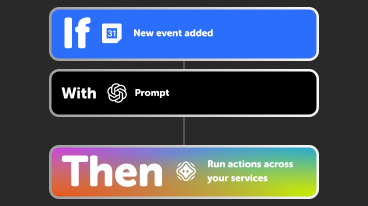
  • If a new calendar event is added, with an AI prompt, then an AI agent runs actions across your services

    Power more advanced automations

    Use credits to power your automations, including actions that require more processing.
  • Get access to faster speeds

    Access faster speeds and higher rate limits

    Get faster updates and more actions with increased rate limits and more frequent checks.

More on Dropbox and Powahome

About Dropbox

Dropbox lets people bring their documents, photos and videos everywhere and share them easily. Use Applets to sync your Dropbox uploads with other services, quickly add new files, and keep track of all your important photos, documents, and data — automatically.

Explore Dropbox

More integrations with Dropbox

About Powahome

Connect your Wi-Fi controlled lights, sockets and roller shutters and interact with them!

Powahome is the Smart Home solution for everyone! We make easier the concept of Smart Home to let everybody able to live in a better way at the home.

Manage from remote sockets, lights, roller shutters using our app, voice assistants and IFTTT!

Explore Powahome

More integrations with Powahome

IFTTT helps all your apps and devices work better together

Get started for free