





15 ready-made Date & Time and Day One Applets
Turn one on, or build your own. Date & Time can start an automation with "Every day at", and IFTTT can then run "Create Journal Entry" on Day One.-
Create a Day One journal entry and get a daily reminderby
-
Create a Day One 5-Minute Journal entry each morningby
-
Create a weekly Day One journal entry with last.fm album collageby
-
Create an evening Day One journal entry dailyby
-
Create a daily 5-minute journal entry in Day Oneby
-
Create a Day One morning journal entry dailyby
-
At the end of each Day, log recent Spotify tracks in Day Oneby
-
Create a Day One journal entry every day at 10:00 AMby
Automate Date & Time and Day One from your AI assistant
Ask OpenClaw to create Date & Time applets that run on your schedule, with IFTTT MCP.
Set up IFTTT MCPCreate your own Date & Time and Day One workflow
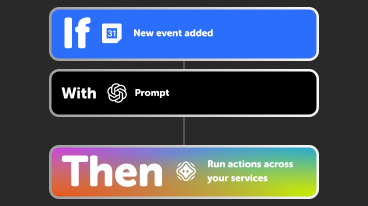
Create custom workflows effortlessly by selecting triggers, queries, and actions. With IFTTT, it's simple: “If this” trigger happens, “then that” action follows. Streamline tasks and save time with automated workflows that work for you.
6 triggers, queries, and actions
Every day at
Polling trigger
Polling Applets run after IFTTT reaches out to the trigger service and finds a new trigger event. These trigger checks occur every hour on Free, every 15 minutes on Starter, and every 5 minutes on Pro and Pro+.
This Trigger fires every single day at a specific time set by you.
Every day of the week at
Polling trigger
Polling Applets run after IFTTT reaches out to the trigger service and finds a new trigger event. These trigger checks occur every hour on Free, every 15 minutes on Starter, and every 5 minutes on Pro and Pro+.
This Trigger fires only on specific days of the week at the time you provide.
Every hour at
Polling trigger
Polling Applets run after IFTTT reaches out to the trigger service and finds a new trigger event. These trigger checks occur every hour on Free, every 15 minutes on Starter, and every 5 minutes on Pro and Pro+.
This Trigger fires once an hour at :00, :15, :30, or :45 minutes past the hour.
Every month on the
Polling trigger
Polling Applets run after IFTTT reaches out to the trigger service and finds a new trigger event. These trigger checks occur every hour on Free, every 15 minutes on Starter, and every 5 minutes on Pro and Pro+.
This Trigger fires every month on the day and time you specify.
Every year on
Polling trigger
Polling Applets run after IFTTT reaches out to the trigger service and finds a new trigger event. These trigger checks occur every hour on Free, every 15 minutes on Starter, and every 5 minutes on Pro and Pro+.
This Trigger fires once a year on the date and time you specify.
Create Journal Entry
Action
An action is the task your Applet carries out after the trigger occurs. It defines what happens as the result of your automation and completes the workflow.
This Action will create a new Journal entry in the Journal you specify.
Create Journal Entry
Action
An action is the task your Applet carries out after the trigger occurs. It defines what happens as the result of your automation and completes the workflow.
This Action will create a new Journal entry in the Journal you specify.
Every day at
Polling trigger
Polling Applets run after IFTTT reaches out to the trigger service and finds a new trigger event. These trigger checks occur every hour on Free, every 15 minutes on Starter, and every 5 minutes on Pro and Pro+.
This Trigger fires every single day at a specific time set by you.
Every day of the week at
Polling trigger
Polling Applets run after IFTTT reaches out to the trigger service and finds a new trigger event. These trigger checks occur every hour on Free, every 15 minutes on Starter, and every 5 minutes on Pro and Pro+.
This Trigger fires only on specific days of the week at the time you provide.
Every hour at
Polling trigger
Polling Applets run after IFTTT reaches out to the trigger service and finds a new trigger event. These trigger checks occur every hour on Free, every 15 minutes on Starter, and every 5 minutes on Pro and Pro+.
This Trigger fires once an hour at :00, :15, :30, or :45 minutes past the hour.
Every month on the
Polling trigger
Polling Applets run after IFTTT reaches out to the trigger service and finds a new trigger event. These trigger checks occur every hour on Free, every 15 minutes on Starter, and every 5 minutes on Pro and Pro+.
This Trigger fires every month on the day and time you specify.
Every year on
Polling trigger
Polling Applets run after IFTTT reaches out to the trigger service and finds a new trigger event. These trigger checks occur every hour on Free, every 15 minutes on Starter, and every 5 minutes on Pro and Pro+.
This Trigger fires once a year on the date and time you specify.
Build an automation in seconds!
If
Every day at
Then
Create Journal Entry
You can add delays, queries, and more actions in the chat.
GET STARTED
How to connect to a Date & Time automation
Find an Applet using Date & Time and Day One
Find an automation to connect to, or create your own!Connect IFTTT to your accounts
Securely connect the Applet services to your respective accounts.Finalize and customize your Applet
Review trigger and action settings, and click connect. Simple as that!Make more happen with your credits
-
More credits, more possibilities
Get more credits per month to power more automation activity. -
Power more advanced automations
Use credits to power your automations, including actions that require more processing. -
Access faster speeds and higher rate limits
Get faster updates and more actions with increased rate limits and more frequent checks.
More on Date & Time and Day One
About Date & Time
Turn on Applets that run on an hourly, daily, weekly, monthly or yearly basis using this service. It's automatically tailored to your time zone.