





Explore Plans

Cololight to Lightform Cloud integrations

Cololight and Lightform Cloud on IFTTT: IFTTT can look up "Current brightness value" on Cololight to use in an automation. Free to start, no code required.
Get started todayGet started today

Automate Cololight and Lightform Cloud from your AI assistant

Ask Perplexity to create Cololight applets that change your lights based on weather, right from your AI assistant, with IFTTT MCP.

Set up IFTTT MCP

Create your own Cololight and Lightform Cloud workflow

Create custom workflows effortlessly by selecting triggers, queries, and actions. With IFTTT, it's simple: “If this” trigger happens, “then that” action follows. Streamline tasks and save time with automated workflows that work for you.

21 triggers, queries, and actions

Current brightness value

Query
A query lets your Applet retrieve extra data that isn't included in the trigger, so that your automation can include more complete or useful information.
This query returns the brightness of the device you choose

Current color value

Query
A query lets your Applet retrieve extra data that isn't included in the trigger, so that your automation can include more complete or useful information.
This query returns the color value of the device you choose

Current power state

Query
A query lets your Applet retrieve extra data that isn't included in the trigger, so that your automation can include more complete or useful information.
This query returns the on/off state of the device you choose

Blink lights

Action
An action is the task your Applet carries out after the trigger occurs. It defines what happens as the result of your automation and completes the workflow.
This Action will blink your lights.

Brighten lights

Action
An action is the task your Applet carries out after the trigger occurs. It defines what happens as the result of your automation and completes the workflow.
This action will increase the brightness of your selected device, the increased brightness value is defined by you.

Dim lights

Action
An action is the task your Applet carries out after the trigger occurs. It defines what happens as the result of your automation and completes the workflow.
This action will dim the selected lights, the decreased brightness value is defined by you.

Go to next slide

Action
An action is the task your Applet carries out after the trigger occurs. It defines what happens as the result of your automation and completes the workflow.
This action will advance to the next slide in the project, or go to the first slide if the final slide is currently playing.

Go to previous slide

Action
An action is the task your Applet carries out after the trigger occurs. It defines what happens as the result of your automation and completes the workflow.
This action will go to the to the previous slide in the project, or go to the last slide if the first slide is currently playing.

Pause project

Action
An action is the task your Applet carries out after the trigger occurs. It defines what happens as the result of your automation and completes the workflow.
This action will pause a currently playing project.

Play project

Action
An action is the task your Applet carries out after the trigger occurs. It defines what happens as the result of your automation and completes the workflow.
This action will resume a currently playing project.

Reboot

Action
An action is the task your Applet carries out after the trigger occurs. It defines what happens as the result of your automation and completes the workflow.
This action will reboot the device.

Set brightness

Action
An action is the task your Applet carries out after the trigger occurs. It defines what happens as the result of your automation and completes the workflow.
This action will set the brightness of the selected lights to the specified value.

Set color

Action
An action is the task your Applet carries out after the trigger occurs. It defines what happens as the result of your automation and completes the workflow.
This Action will change your lights to a specified color.

Set dynamic effect

Action
An action is the task your Applet carries out after the trigger occurs. It defines what happens as the result of your automation and completes the workflow.
This Action will change your lights to a specified dynamic effect.

Set parameter value

Action
An action is the task your Applet carries out after the trigger occurs. It defines what happens as the result of your automation and completes the workflow.
This action will update a slide parameter value

Blink lights

Action
An action is the task your Applet carries out after the trigger occurs. It defines what happens as the result of your automation and completes the workflow.
This Action will blink your lights.

Brighten lights

Action
An action is the task your Applet carries out after the trigger occurs. It defines what happens as the result of your automation and completes the workflow.
This action will increase the brightness of your selected device, the increased brightness value is defined by you.

Current brightness value

Query
A query lets your Applet retrieve extra data that isn't included in the trigger, so that your automation can include more complete or useful information.
This query returns the brightness of the device you choose

Current color value

Query
A query lets your Applet retrieve extra data that isn't included in the trigger, so that your automation can include more complete or useful information.
This query returns the color value of the device you choose

Current power state

Query
A query lets your Applet retrieve extra data that isn't included in the trigger, so that your automation can include more complete or useful information.
This query returns the on/off state of the device you choose

Dim lights

Action
An action is the task your Applet carries out after the trigger occurs. It defines what happens as the result of your automation and completes the workflow.
This action will dim the selected lights, the decreased brightness value is defined by you.

Go to next slide

Action
An action is the task your Applet carries out after the trigger occurs. It defines what happens as the result of your automation and completes the workflow.
This action will advance to the next slide in the project, or go to the first slide if the final slide is currently playing.

Go to previous slide

Action
An action is the task your Applet carries out after the trigger occurs. It defines what happens as the result of your automation and completes the workflow.
This action will go to the to the previous slide in the project, or go to the last slide if the first slide is currently playing.

Pause project

Action
An action is the task your Applet carries out after the trigger occurs. It defines what happens as the result of your automation and completes the workflow.
This action will pause a currently playing project.

Play project

Action
An action is the task your Applet carries out after the trigger occurs. It defines what happens as the result of your automation and completes the workflow.
This action will resume a currently playing project.

Reboot

Action
An action is the task your Applet carries out after the trigger occurs. It defines what happens as the result of your automation and completes the workflow.
This action will reboot the device.

Set brightness

Action
An action is the task your Applet carries out after the trigger occurs. It defines what happens as the result of your automation and completes the workflow.
This action will set the brightness of the selected lights to the specified value.
GET STARTED

How to connect to a Cololight automation

Find an Applet using Cololight and Lightform Cloud

Find an automation to connect to, or create your own!

Connect IFTTT to your accounts

Securely connect the Applet services to your respective accounts.

Finalize and customize your Applet

Review trigger and action settings, and click connect. Simple as that!
Get started

Make more happen with your credits

  • Connect to more Applets

    More credits, more possibilities

    Get more credits per month to power more automation activity.
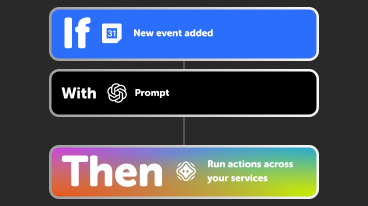
  • If a new calendar event is added, with an AI prompt, then an AI agent runs actions across your services

    Power more advanced automations

    Use credits to power your automations, including actions that require more processing.
  • Get access to faster speeds

    Access faster speeds and higher rate limits

    Get faster updates and more actions with increased rate limits and more frequent checks.

More on Cololight and Lightform Cloud

About Cololight

Find a way to escape the norm. With this service, there is an abundance of colorful subject matter and brilliant light in your space when weather changes. Try to turn your thoughts and emotional experiences into objects and scenes that are visualize by creating automated applets on IFTTT platform.

Explore Cololight

More integrations with Cololight

About Lightform Cloud

Integrate your Lightform devices with other cloud ecosystems using IFTTT triggers. Update live shader parameters, change slides, or even schedule the projector to turn on and off.

Explore Lightform Cloud

More integrations with Lightform Cloud

IFTTT helps all your apps and devices work better together

Get started for free