





Explore Plans

Buffer to Lightform Cloud integrations

Buffer and Lightform Cloud both work with IFTTT. Buffer can start an automation with "New post sent", and IFTTT can then run "Go to next slide" on Lightform Cloud.
Get started todayGet started today

Automate Buffer and Lightform Cloud from your AI assistant

Ask OpenClaw to create Buffer applets for you, right from your AI assistant, with IFTTT MCP.

Set up IFTTT MCP

Create your own Buffer and Lightform Cloud workflow

Create custom workflows effortlessly by selecting triggers, queries, and actions. With IFTTT, it's simple: “If this” trigger happens, “then that” action follows. Streamline tasks and save time with automated workflows that work for you.

16 triggers, queries, and actions

New post sent

Polling trigger
Polling Applets run after IFTTT reaches out to the trigger service and finds a new trigger event. These trigger checks occur every hour on Free, every 15 minutes on Starter, and every 5 minutes on Pro and Pro+.
This trigger fires every time a post you scheduled through Buffer has been successfully published to its social network.

Post failed to send

Polling trigger
Polling Applets run after IFTTT reaches out to the trigger service and finds a new trigger event. These trigger checks occur every hour on Free, every 15 minutes on Starter, and every 5 minutes on Pro and Pro+.
This trigger fires every time one of your scheduled Buffer posts fails to publish to its social network.

Add a post to the queue

Action
An action is the task your Applet carries out after the trigger occurs. It defines what happens as the result of your automation and completes the workflow.
This action will add a post to your Buffer queue for the channel you choose. Buffer schedules it automatically based on that channel's posting schedule.

Go to next slide

Action
An action is the task your Applet carries out after the trigger occurs. It defines what happens as the result of your automation and completes the workflow.
This action will advance to the next slide in the project, or go to the first slide if the final slide is currently playing.

Go to previous slide

Action
An action is the task your Applet carries out after the trigger occurs. It defines what happens as the result of your automation and completes the workflow.
This action will go to the to the previous slide in the project, or go to the last slide if the first slide is currently playing.

Pause project

Action
An action is the task your Applet carries out after the trigger occurs. It defines what happens as the result of your automation and completes the workflow.
This action will pause a currently playing project.

Play project

Action
An action is the task your Applet carries out after the trigger occurs. It defines what happens as the result of your automation and completes the workflow.
This action will resume a currently playing project.

Reboot

Action
An action is the task your Applet carries out after the trigger occurs. It defines what happens as the result of your automation and completes the workflow.
This action will reboot the device.

Schedule a post

Action
An action is the task your Applet carries out after the trigger occurs. It defines what happens as the result of your automation and completes the workflow.
This action will schedule a post to publish at a specific date and time on the channel you choose.

Set parameter value

Action
An action is the task your Applet carries out after the trigger occurs. It defines what happens as the result of your automation and completes the workflow.
This action will update a slide parameter value

Set projector brightness

Action
An action is the task your Applet carries out after the trigger occurs. It defines what happens as the result of your automation and completes the workflow.
This action will change the global brightness of the projection

Set slide index

Action
An action is the task your Applet carries out after the trigger occurs. It defines what happens as the result of your automation and completes the workflow.
This action will start playing the slide at the given index

Share a post now

Action
An action is the task your Applet carries out after the trigger occurs. It defines what happens as the result of your automation and completes the workflow.
This action will publish a post to the channel you choose immediately, bypassing the Buffer queue.

Stop project

Action
An action is the task your Applet carries out after the trigger occurs. It defines what happens as the result of your automation and completes the workflow.
This action will stop a currently playing project and return to the testcard.

Add a post to the queue

Action
An action is the task your Applet carries out after the trigger occurs. It defines what happens as the result of your automation and completes the workflow.
This action will add a post to your Buffer queue for the channel you choose. Buffer schedules it automatically based on that channel's posting schedule.

Go to next slide

Action
An action is the task your Applet carries out after the trigger occurs. It defines what happens as the result of your automation and completes the workflow.
This action will advance to the next slide in the project, or go to the first slide if the final slide is currently playing.

Go to previous slide

Action
An action is the task your Applet carries out after the trigger occurs. It defines what happens as the result of your automation and completes the workflow.
This action will go to the to the previous slide in the project, or go to the last slide if the first slide is currently playing.

New post sent

Polling trigger
Polling Applets run after IFTTT reaches out to the trigger service and finds a new trigger event. These trigger checks occur every hour on Free, every 15 minutes on Starter, and every 5 minutes on Pro and Pro+.
This trigger fires every time a post you scheduled through Buffer has been successfully published to its social network.

Pause project

Action
An action is the task your Applet carries out after the trigger occurs. It defines what happens as the result of your automation and completes the workflow.
This action will pause a currently playing project.

Play project

Action
An action is the task your Applet carries out after the trigger occurs. It defines what happens as the result of your automation and completes the workflow.
This action will resume a currently playing project.

Post failed to send

Polling trigger
Polling Applets run after IFTTT reaches out to the trigger service and finds a new trigger event. These trigger checks occur every hour on Free, every 15 minutes on Starter, and every 5 minutes on Pro and Pro+.
This trigger fires every time one of your scheduled Buffer posts fails to publish to its social network.

Reboot

Action
An action is the task your Applet carries out after the trigger occurs. It defines what happens as the result of your automation and completes the workflow.
This action will reboot the device.

Schedule a post

Action
An action is the task your Applet carries out after the trigger occurs. It defines what happens as the result of your automation and completes the workflow.
This action will schedule a post to publish at a specific date and time on the channel you choose.

Set parameter value

Action
An action is the task your Applet carries out after the trigger occurs. It defines what happens as the result of your automation and completes the workflow.
This action will update a slide parameter value

Set projector brightness

Action
An action is the task your Applet carries out after the trigger occurs. It defines what happens as the result of your automation and completes the workflow.
This action will change the global brightness of the projection

Set slide index

Action
An action is the task your Applet carries out after the trigger occurs. It defines what happens as the result of your automation and completes the workflow.
This action will start playing the slide at the given index

Build an automation in seconds!

You can add delays, queries, and more actions in the chat.
GET STARTED

How to connect to a Buffer automation

Find an Applet using Buffer and Lightform Cloud

Find an automation to connect to, or create your own!

Connect IFTTT to your accounts

Securely connect the Applet services to your respective accounts.

Finalize and customize your Applet

Review trigger and action settings, and click connect. Simple as that!
Get started

Make more happen with your credits

  • Connect to more Applets

    More credits, more possibilities

    Get more credits per month to power more automation activity.
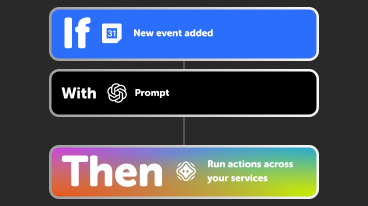
  • If a new calendar event is added, with an AI prompt, then an AI agent runs actions across your services

    Power more advanced automations

    Use credits to power your automations, including actions that require more processing.
  • Get access to faster speeds

    Access faster speeds and higher rate limits

    Get faster updates and more actions with increased rate limits and more frequent checks.

More on Buffer and Lightform Cloud

About Buffer

Buffer is a social media management tool for scheduling, publishing, and analyzing posts across X, LinkedIn, Facebook, Instagram, Threads, Bluesky, Mastodon, Pinterest, YouTube, and Google Business Profile. A Buffer "channel" is one connected social account, and posts are queued to one channel at a time. Use Buffer on IFTTT to automatically fill your queue from any source, publish posts instantly, or get notified when scheduled content goes live.

Explore Buffer

More integrations with Buffer

About Lightform Cloud

Integrate your Lightform devices with other cloud ecosystems using IFTTT triggers. Update live shader parameters, change slides, or even schedule the projector to turn on and off.

Explore Lightform Cloud

More integrations with Lightform Cloud

IFTTT helps all your apps and devices work better together

Get started for free