







Explore Plans

Box to OneNote integrations

When you create a new page in OneNote, IFTTT can save it as a text file in Box. Your notes get backed up automatically, and you'll have them stored in a central place alongside your other files.
Get started todayGet started today

Automate Box and OneNote from your AI assistant

Ask Perplexity to create Box applets for you, right from your AI assistant, with IFTTT MCP.

Set up IFTTT MCP

Create your own Box and OneNote workflow

Create custom workflows effortlessly by selecting triggers, queries, and actions. With IFTTT, it's simple: “If this” trigger happens, “then that” action follows. Streamline tasks and save time with automated workflows that work for you.

6 triggers, queries, and actions

Append to a text file

Action
An action is the task your Applet carries out after the trigger occurs. It defines what happens as the result of your automation and completes the workflow.
This Action will append to a text file as determined by the file name and folder path you specify. Once a file’s size reaches 2MB a new file will be created.

Create a page

Action
An action is the task your Applet carries out after the trigger occurs. It defines what happens as the result of your automation and completes the workflow.
This Action will create a new page in the specified section of the specified notebook.

Create a page from a link

Action
An action is the task your Applet carries out after the trigger occurs. It defines what happens as the result of your automation and completes the workflow.
This Action creates a page from a link in the specified section of the specified notebook.

Create a page with an image

Action
An action is the task your Applet carries out after the trigger occurs. It defines what happens as the result of your automation and completes the workflow.
This Action will create a new page with an image in the specified section of the specified notebook.

Create a text file

Action
An action is the task your Applet carries out after the trigger occurs. It defines what happens as the result of your automation and completes the workflow.
This Action will create a new text file at the path you specify.

Upload file from URL

Action
An action is the task your Applet carries out after the trigger occurs. It defines what happens as the result of your automation and completes the workflow.
This Action will download a file at a given URL and add it to Box at the path you specify. NOTE: 30 MB file size limit.
GET STARTED

How to connect to a Box automation

Find an Applet using Box and OneNote

Find an automation to connect to, or create your own!

Connect IFTTT to your accounts

Securely connect the Applet services to your respective accounts.

Finalize and customize your Applet

Review trigger and action settings, and click connect. Simple as that!
Get started

Make more happen with your credits

  • Connect to more Applets

    More credits, more possibilities

    Get more credits per month to power more automation activity.
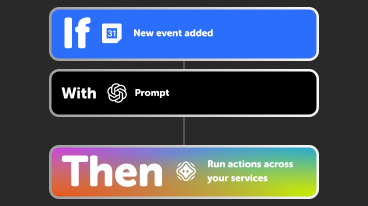
  • If a new calendar event is added, with an AI prompt, then an AI agent runs actions across your services

    Power more advanced automations

    Use credits to power your automations, including actions that require more processing.
  • Get access to faster speeds

    Access faster speeds and higher rate limits

    Get faster updates and more actions with increased rate limits and more frequent checks.

More on Box and OneNote

About Box

Box and IFTTT let you automatically upload files and create text files in your Box account.
Explore Box

More integrations with Box

About OneNote

OneNote and IFTTT let you automatically save links and images as pages in your notebook.
Explore OneNote

More integrations with OneNote

IFTTT helps all your apps and devices work better together

Get started for free