





9 ready-made Ambient Weather and Honeywell Total Connect Comfort Applets
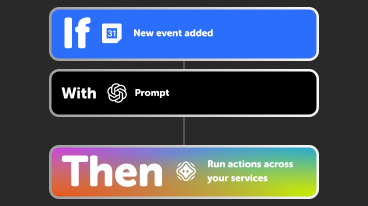
Turn one on, or build your own. Ambient Weather can start an automation with "Daily Rain rises above", and IFTTT can then run "Resume programmed schedule" on Honeywell Total Connect Comfort.-
Adjust Honeywell temperature when Ambient Weather reading falls below thresholdby
-
Set Honeywell fan when Ambient Weather temperature falls below thresholdby
-
Set Honeywell temperature when Ambient Weather rises above thresholdby
-
Set Honeywell thermostat when Ambient Weather temperature crosses thresholdby
-
Set Honeywell temperature when Ambient Weather rises above thresholdby
-
Set Honeywell fan when Ambient Weather temperature rises above thresholdby
-
Turn on GE AC and set Honeywell heat when outdoor temperature rises above thresholdby
-
Set Honeywell thermostat hold when outdoor temperature risesby
-
Set Honeywell thermostat temperature when outdoor temperature dropsby
Automate Ambient Weather and Honeywell Total Connect Comfort from your AI assistant
Have Claude, ChatGPT, or Cursor build and run Ambient Weather and Honeywell Total Connect Comfort automations for you, like “Adjust Honeywell temperature when Ambient Weather reading falls below threshold”, with IFTTT MCP.
Set up IFTTT MCPCreate your own Ambient Weather and Honeywell Total Connect Comfort workflow
Create custom workflows effortlessly by selecting triggers, queries, and actions. With IFTTT, it's simple: “If this” trigger happens, “then that” action follows. Streamline tasks and save time with automated workflows that work for you.
20 triggers, queries, and actions
Daily Rain rises above
Device stops reporting
Outdoor Temperature falls below
Outdoor Temperature rises above
Parameter falls below
Parameter rises above
UV rises above
Wind Speed rises above
History of Daily Rain rises above
History of Device not reporting alerts
History of Outdoor Temperature drops
History of outdoor temperature rising above a temperature
History of Parameter exceeds threshold
History of parameter falls
History of when UV rose above a threshold
History of Wind Speed rises above threshold
Resume programmed schedule
Set fan to on or auto
Set temperature for a period of time
Set temperature to a permanent hold
Daily Rain rises above
Device stops reporting
History of Daily Rain rises above
History of Device not reporting alerts
History of Outdoor Temperature drops
History of outdoor temperature rising above a temperature
History of Parameter exceeds threshold
History of parameter falls
History of when UV rose above a threshold
History of Wind Speed rises above threshold
Outdoor Temperature falls below
Outdoor Temperature rises above
Build an automation in seconds!
You can add delays, queries, and more actions in the chat.

How to connect to a Ambient Weather automation
Find an Applet using Ambient Weather and Honeywell Total Connect Comfort
Find an automation to connect to, or create your own!Connect IFTTT to your accounts
Securely connect the Applet services to your respective accounts.Finalize and customize your Applet
Review trigger and action settings, and click connect. Simple as that!Make more happen with your credits
-
More credits, more possibilities
Get more credits per month to power more automation activity. -
Power more advanced automations
Use credits to power your automations, including actions that require more processing. -
Access faster speeds and higher rate limits
Get faster updates and more actions with increased rate limits and more frequent checks.
More on Ambient Weather and Honeywell Total Connect Comfort
About Ambient Weather
Your personal weather data dashboard. Create IFTTT Applets using information from your personal AmbientWeather.net-enabled weather station to perform tasks based on temperature, wind, rainfall, and many other weather parameters.
About Honeywell Total Connect Comfort
Honeywell Total Connect Comfort allows users of supported North American and Middle Eastern thermostats to remotely control their devices and manage their home’s comfort and energy usage anytime, anywhere. EMEA users: please refer to the other Honeywell Channels.