





Explore Plans

AL-KO Smart Garden to Dropbox integrations

When your AL-KO Robolinho detects rain or hits an error, IFTTT creates a text file in Dropbox with the details. You'll have a log of your mower's activity automatically saved and backed up, so you can track maintenance needs and troubleshoot issues over time.
Get started todayGet started today

Automate AL-KO Smart Garden and Dropbox from your AI assistant

Ask ChatGPT to create AL-KO Smart Garden applets for you, right from your AI assistant, with IFTTT MCP.

Set up IFTTT MCP

Create your own AL-KO Smart Garden and Dropbox workflow

Create custom workflows effortlessly by selecting triggers, queries, and actions. With IFTTT, it's simple: “If this” trigger happens, “then that” action follows. Streamline tasks and save time with automated workflows that work for you.

35 triggers, queries, and actions

Any new shared file link

Polling trigger
Polling Applets run after IFTTT reaches out to the trigger service and finds a new trigger event. These trigger checks occur every hour on Free, every 15 minutes on Starter, and every 5 minutes on Pro and Pro+.
This trigger fires every time a shared link for a file is created. Note: doesn't include folders.

New file in your folder

Polling trigger
Polling Applets run after IFTTT reaches out to the trigger service and finds a new trigger event. These trigger checks occur every hour on Free, every 15 minutes on Starter, and every 5 minutes on Pro and Pro+.
This Trigger fires every time any file is saved in the folder you specify. NOTE: will process up to 15 files per polling period.

New photo in your folder

Polling trigger
Polling Applets run after IFTTT reaches out to the trigger service and finds a new trigger event. These trigger checks occur every hour on Free, every 15 minutes on Starter, and every 5 minutes on Pro and Pro+.
This Trigger fires every time a photo is saved in the folder you specify. NOTE: will process up to 15 photos per polling period.

New text file in your folder

Polling trigger
Polling Applets run after IFTTT reaches out to the trigger service and finds a new trigger event. These trigger checks occur every hour on Free, every 15 minutes on Starter, and every 5 minutes on Pro and Pro+.
This Trigger fires every time any text file is saved in the folder you specify. NOTE: will process up to 15 files per polling period.

Robolinho has detected rain

Polling trigger
Polling Applets run after IFTTT reaches out to the trigger service and finds a new trigger event. These trigger checks occur every hour on Free, every 15 minutes on Starter, and every 5 minutes on Pro and Pro+.
Your Robolinho device has detected rain with its built-in rain sensor

Robolinho® has arrived at the base station

Polling trigger
Polling Applets run after IFTTT reaches out to the trigger service and finds a new trigger event. These trigger checks occur every hour on Free, every 15 minutes on Starter, and every 5 minutes on Pro and Pro+.
This trigger fires when your AL-KO Robolinho® has arrived at the base station

Robolinho® has lost WiFi connection (is offline)

Polling trigger
Polling Applets run after IFTTT reaches out to the trigger service and finds a new trigger event. These trigger checks occur every hour on Free, every 15 minutes on Starter, and every 5 minutes on Pro and Pro+.
This trigger fires when your Robolinho® has lost WiFi connection (is offline)

Robolinho® has reached full battery level (100%)

Polling trigger
Polling Applets run after IFTTT reaches out to the trigger service and finds a new trigger event. These trigger checks occur every hour on Free, every 15 minutes on Starter, and every 5 minutes on Pro and Pro+.
This trigger fires when the Robolinho® has reached full battery level (battery level 100%)

Robolinho® has started mowing

Polling trigger
Polling Applets run after IFTTT reaches out to the trigger service and finds a new trigger event. These trigger checks occur every hour on Free, every 15 minutes on Starter, and every 5 minutes on Pro and Pro+.
This trigger fires when your AL-KO Robolinho® has start mowing

Robolinho® reports an error

Polling trigger
Polling Applets run after IFTTT reaches out to the trigger service and finds a new trigger event. These trigger checks occur every hour on Free, every 15 minutes on Starter, and every 5 minutes on Pro and Pro+.
The trigger fires when your AL-KO Robolinho® reports an error

Smart lawnmower button press once

Polling trigger
Polling Applets run after IFTTT reaches out to the trigger service and finds a new trigger event. These trigger checks occur every hour on Free, every 15 minutes on Starter, and every 5 minutes on Pro and Pro+.
when the smart button of the lawnmower has pressed once

Smart lawnmower button press thrice

Polling trigger
Polling Applets run after IFTTT reaches out to the trigger service and finds a new trigger event. These trigger checks occur every hour on Free, every 15 minutes on Starter, and every 5 minutes on Pro and Pro+.
when the smart button of the lawnmower has pressed thrice

File metadata

Query
A query lets your Applet retrieve extra data that isn't included in the trigger, so that your automation can include more complete or useful information.
This query returns the metadata of a file.

Find file by name

Query
A query lets your Applet retrieve extra data that isn't included in the trigger, so that your automation can include more complete or useful information.
This query returns a list of files searched by name you specify.

History of files in your folder

Query
A query lets your Applet retrieve extra data that isn't included in the trigger, so that your automation can include more complete or useful information.
This query returns a list of every time any file is saved in the folder you specify. NOTE: will process up to 15 files per polling period.

History of photos in your folder

Query
A query lets your Applet retrieve extra data that isn't included in the trigger, so that your automation can include more complete or useful information.
This query returns a list of every time a photo is saved in the folder you specify. NOTE: will process up to 15 photos per polling period.

History of Robolinho® has lost WiFi connection (is offline)

Query
A query lets your Applet retrieve extra data that isn't included in the trigger, so that your automation can include more complete or useful information.
This query returns a list of when your Robolinho® was lost WiFi connection (is offline).

History of Robolinho® needs new blades

Query
A query lets your Applet retrieve extra data that isn't included in the trigger, so that your automation can include more complete or useful information.
This query returns a list of when the blades of the Robolinho® are not sharp any more.

History of text files in your folder

Query
A query lets your Applet retrieve extra data that isn't included in the trigger, so that your automation can include more complete or useful information.
This query returns a list of every time any text file is saved in the folder you specify. NOTE: will process up to 15 files per polling period.

List shared file links

Query
A query lets your Applet retrieve extra data that isn't included in the trigger, so that your automation can include more complete or useful information.
This query returns all shared file links. Note: doesn't include folders.

Activate Robolinho® eco-Mode

Action
An action is the task your Applet carries out after the trigger occurs. It defines what happens as the result of your automation and completes the workflow.
This action will activate the eco-Mode of your Robolinho®. With an activated eco-Mode the blade-engine rotates slower which makes the Robolinho® even more quiet and reduces the power drain.

Activate Robolinho® rain sensor

Action
An action is the task your Applet carries out after the trigger occurs. It defines what happens as the result of your automation and completes the workflow.
This action will activate the rain sensor of your Robolinho®. With an activated rain sensor the Robolinho® can detect rain and delay its duty until rain has stopped.

Add file from URL

Action
An action is the task your Applet carries out after the trigger occurs. It defines what happens as the result of your automation and completes the workflow.
This Action will download a file at a given URL and add it to Dropbox at the path you specify. NOTE: 30 MB file size limit.

Append to a text file

Action
An action is the task your Applet carries out after the trigger occurs. It defines what happens as the result of your automation and completes the workflow.
This Action will append to a text file as determined by the file name and folder path you specify. Once a file’s size reaches 2MB a new file will be created.

Create a text file

Action
An action is the task your Applet carries out after the trigger occurs. It defines what happens as the result of your automation and completes the workflow.
This Action will create a new text file at the path you specify.

Deactivate Robolinho® eco-Mode

Action
An action is the task your Applet carries out after the trigger occurs. It defines what happens as the result of your automation and completes the workflow.
This action will deactivate the eco-Mode of your Robolinho®. With an activated eco-Mode the blade engine rotates slower which makes the Robolinho® even more quiet and reduces the power drain.

Deactivate Robolinho® rain sensor

Action
An action is the task your Applet carries out after the trigger occurs. It defines what happens as the result of your automation and completes the workflow.
This action will deactivate the rain sensor of your Robolinho®. With an activated rain sensor the Robolinho® can detect rain and delay its duty until rain has stopped.

Move file or folder

Action
An action is the task your Applet carries out after the trigger occurs. It defines what happens as the result of your automation and completes the workflow.
This action will move a file or a folder to new location.

Revoke shared link

Action
An action is the task your Applet carries out after the trigger occurs. It defines what happens as the result of your automation and completes the workflow.
This action will revoke the direct link to the file. Note: the file may still be accessible if there are shared links leading to any of the file parent folders.

Send Robolinho® home to base station (stop mowing)

Action
An action is the task your Applet carries out after the trigger occurs. It defines what happens as the result of your automation and completes the workflow.
This action will send your AL-KO Robolinho® back home to the base station (stop mowing)

Skip today's mowing windows

Action
An action is the task your Applet carries out after the trigger occurs. It defines what happens as the result of your automation and completes the workflow.
Skips every following mowing window for today

Start Robolinho® (start mowing)

Action
An action is the task your Applet carries out after the trigger occurs. It defines what happens as the result of your automation and completes the workflow.
This action will start your Robolinho® (start mowing)

Activate Robolinho® eco-Mode

Action
An action is the task your Applet carries out after the trigger occurs. It defines what happens as the result of your automation and completes the workflow.
This action will activate the eco-Mode of your Robolinho®. With an activated eco-Mode the blade-engine rotates slower which makes the Robolinho® even more quiet and reduces the power drain.

Activate Robolinho® rain sensor

Action
An action is the task your Applet carries out after the trigger occurs. It defines what happens as the result of your automation and completes the workflow.
This action will activate the rain sensor of your Robolinho®. With an activated rain sensor the Robolinho® can detect rain and delay its duty until rain has stopped.

Add file from URL

Action
An action is the task your Applet carries out after the trigger occurs. It defines what happens as the result of your automation and completes the workflow.
This Action will download a file at a given URL and add it to Dropbox at the path you specify. NOTE: 30 MB file size limit.

Any new shared file link

Polling trigger
Polling Applets run after IFTTT reaches out to the trigger service and finds a new trigger event. These trigger checks occur every hour on Free, every 15 minutes on Starter, and every 5 minutes on Pro and Pro+.
This trigger fires every time a shared link for a file is created. Note: doesn't include folders.

Append to a text file

Action
An action is the task your Applet carries out after the trigger occurs. It defines what happens as the result of your automation and completes the workflow.
This Action will append to a text file as determined by the file name and folder path you specify. Once a file’s size reaches 2MB a new file will be created.

Create a text file

Action
An action is the task your Applet carries out after the trigger occurs. It defines what happens as the result of your automation and completes the workflow.
This Action will create a new text file at the path you specify.

Deactivate Robolinho® eco-Mode

Action
An action is the task your Applet carries out after the trigger occurs. It defines what happens as the result of your automation and completes the workflow.
This action will deactivate the eco-Mode of your Robolinho®. With an activated eco-Mode the blade engine rotates slower which makes the Robolinho® even more quiet and reduces the power drain.

Deactivate Robolinho® rain sensor

Action
An action is the task your Applet carries out after the trigger occurs. It defines what happens as the result of your automation and completes the workflow.
This action will deactivate the rain sensor of your Robolinho®. With an activated rain sensor the Robolinho® can detect rain and delay its duty until rain has stopped.

File metadata

Query
A query lets your Applet retrieve extra data that isn't included in the trigger, so that your automation can include more complete or useful information.
This query returns the metadata of a file.

Find file by name

Query
A query lets your Applet retrieve extra data that isn't included in the trigger, so that your automation can include more complete or useful information.
This query returns a list of files searched by name you specify.

History of files in your folder

Query
A query lets your Applet retrieve extra data that isn't included in the trigger, so that your automation can include more complete or useful information.
This query returns a list of every time any file is saved in the folder you specify. NOTE: will process up to 15 files per polling period.

History of photos in your folder

Query
A query lets your Applet retrieve extra data that isn't included in the trigger, so that your automation can include more complete or useful information.
This query returns a list of every time a photo is saved in the folder you specify. NOTE: will process up to 15 photos per polling period.

Build an automation in seconds!

You can add delays, queries, and more actions in the chat.

GET STARTED

How to connect to a AL-KO Smart Garden automation

Find an Applet using AL-KO Smart Garden and Dropbox

Find an automation to connect to, or create your own!

Connect IFTTT to your accounts

Securely connect the Applet services to your respective accounts.

Finalize and customize your Applet

Review trigger and action settings, and click connect. Simple as that!
Get started

Make more happen with your credits

  • Connect to more Applets

    More credits, more possibilities

    Get more credits per month to power more automation activity.
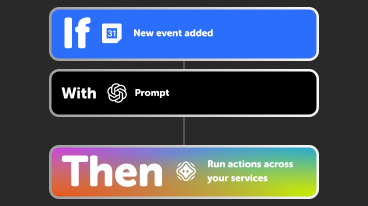
  • If a new calendar event is added, with an AI prompt, then an AI agent runs actions across your services

    Power more advanced automations

    Use credits to power your automations, including actions that require more processing.
  • Get access to faster speeds

    Access faster speeds and higher rate limits

    Get faster updates and more actions with increased rate limits and more frequent checks.

More on AL-KO Smart Garden and Dropbox

About AL-KO Smart Garden

AL-KO Smart Garden and IFTTT let you automate your Robolinho robotic lawnmower based on weather, battery, and connection status.
Explore AL-KO Smart Garden

More integrations with AL-KO Smart Garden

About Dropbox

Dropbox and IFTTT let you automate your file management, from organizing uploads to creating and updating files across your other apps.
Explore Dropbox

More integrations with Dropbox

IFTTT helps all your apps and devices work better together

Get started for free